Welcome
How SureBook categorizes your emails
SureBook categorizes incoming emails so you can see what needs your attention. You can keep each category in your inbox or move it to its own folder.
How email categories work
SureBook adds a category tag to each incoming email based on its relevance to your business. The available categories are:
- Opportunity
- Application
- Client
- Partners & Referrals
- Carrier & Compliance
- Business Operations
- Promotional
- Personal
- Notifications
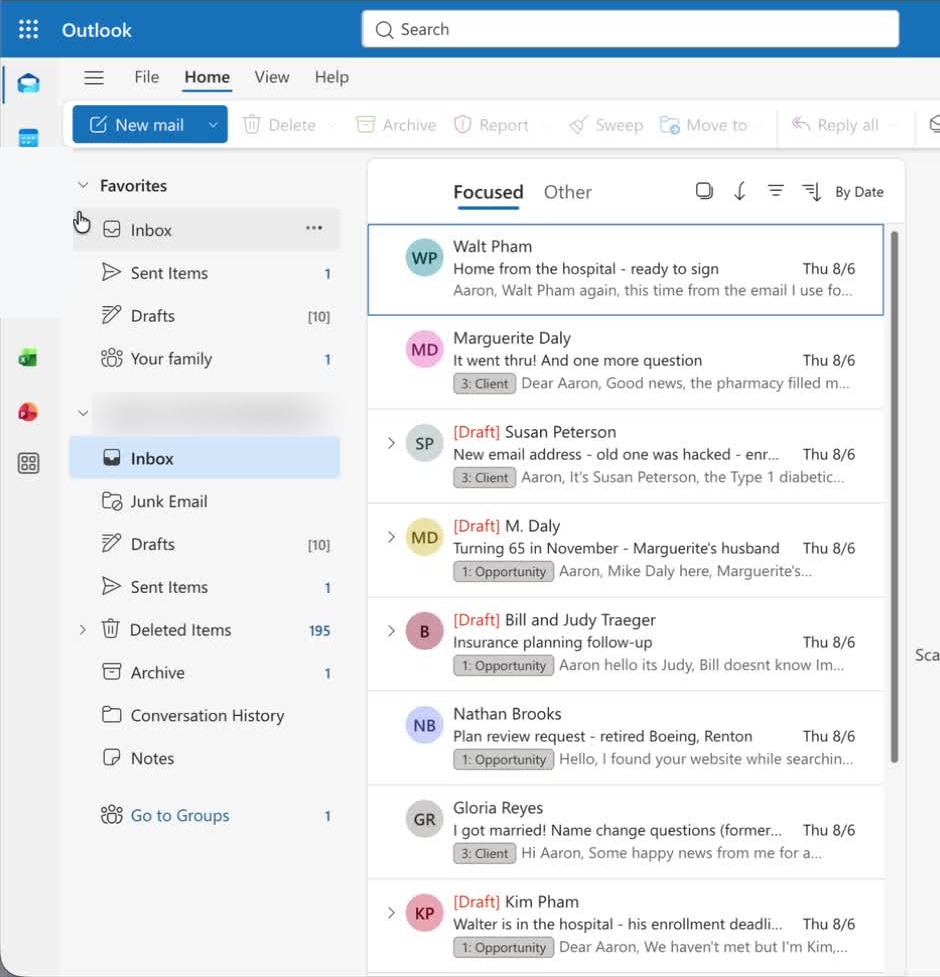
Choose where each category appears
- Open Settings in SureBook.
- Select Preferences.
- Find Categorization.
- Find the category you want to manage.
- Click Keep in inbox to leave that category in your inbox, or click Move to folder to move it out of your inbox.
- Repeat these steps for any other categories you want to change.

Emails moved to folders remain available
Choosing Move to folder does not remove the email. You can find it in a subfolder named after its category.
Troubleshooting
Where did an email go after I chose Move to folder?
Look for the subfolder named after that email's category. The email remains available there.
How do I return a category to my inbox?
Go to Settings > Preferences. Under Categorization, find the category and click Keep in inbox.
Can I use a different location for each category?
Yes. Choose Keep in inbox or Move to folder separately for each category.
Still stuck?
Ask us a question and we'll get back to you — your question also helps us improve this guide.